 WriteMind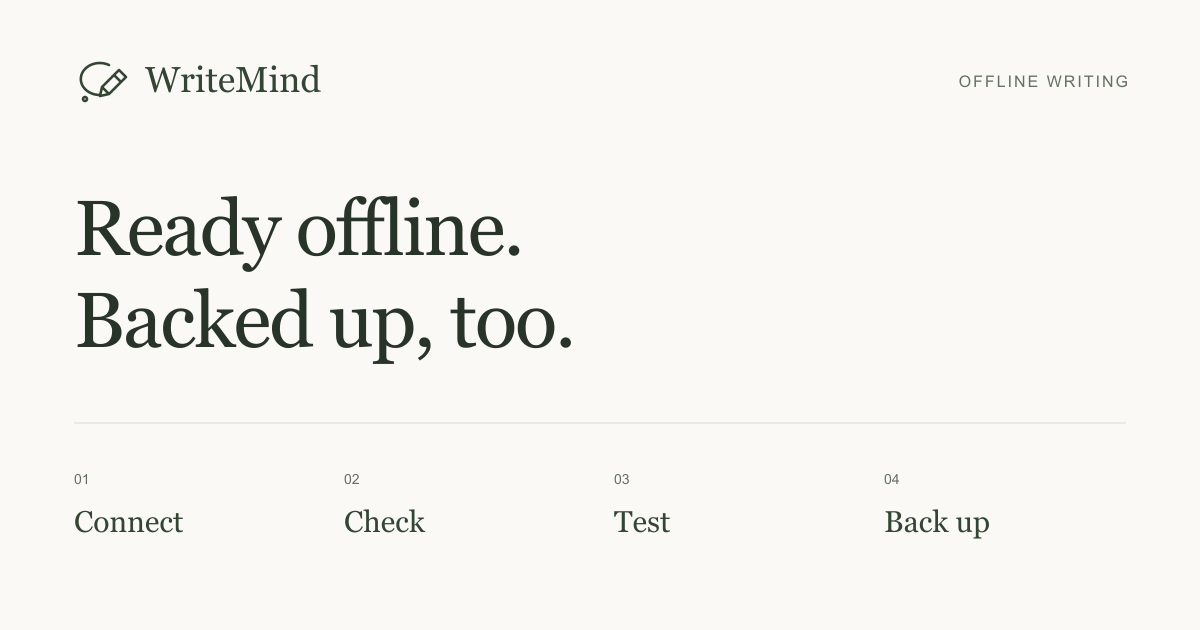
An offline writing app is useful on a train, during travel, or anywhere a connection is unreliable. With a browser-based app, do the setup before you disconnect: the browser needs a saved copy of the editor as well as a place to keep your drafts.
WriteMind can work offline after its initial online setup finishes. Its writing controls, themes, bundled sounds, and local coach are then available in that browser. Here is how to check the setup, test a draft, and keep a separate copy of your work.
1. Prepare the app while connected
- Open WriteMind in the browser you plan to use.
- Open the three-dot Document tools menu and choose Install WriteMind. If it is already installed, the menu may say App & offline.
- Wait for the status to say Ready offline. Merely seeing the editor is not confirmation that setup has finished.
- If you want a separate app window, follow the installation instructions shown for your browser. Installation and offline readiness are related conveniences, but check the readiness message either way.
If setup cannot finish, reopen the app while connected and check again. Avoid waiting until a flight or a connection outage to discover that the browser has not saved the app files.
2. Test with a disposable draft
Create a new document called “Offline test” and write a sentence that you will recognize. Then temporarily disconnect your device from the internet. Reopen WriteMind in the same browser or installed app, find the test document, and add a second sentence.
Close and reopen the app once more while still offline. Both sentences should be present. Try the specific features you will need, such as headings, an imported image, or the writing coach. Reconnect when you are finished.
This check tests your setup on your device. It does not guarantee that the browser will retain data forever. Keep an independent backup of anything important before a long writing session.
3. Know the difference between the app and your documents
| Saved locally | What it does |
|---|---|
| App files | Let the interface, styles, and bundled features open without downloading them again. |
| Your library | Keeps document text, images, and titles in the browser where you wrote them. |
Browser storage is associated with the site and browser context, and storage policies differ across browsers. Data can be removed by the user or under browser storage rules. See MDN’s explanation of storage quotas and eviction for the technical background.
For WriteMind, the practical rule is straightforward: continue using the same site address and browser. A different device, browser profile, or installed-app context may have a separate library. Private browsing is unsuitable for drafts you expect to find later.
4. Make a backup before moving devices
Open Library → Backup to download the library. Keep the file somewhere you can find and check that the download completed. You can also use Document tools → Export document to save one formatted document for reading or sharing.
To transfer a library, first back up any documents already in the destination browser. Then use Restore there to choose the incoming backup. Restore replaces the destination library; it is not a merge or a synchronization feature.
Backups and exports are ordinary, unencrypted files. Choose a storage location appropriate to their contents. For a fuller explanation of local storage and privacy, read what a private writing app keeps on your device.
If the app opens but your draft is missing
- Check the site address. Different addresses can have separate browser storage even if they look like the same app.
- Check the browser and profile. Return to the one where you created the document.
- Check Library. The document may be saved while another document is currently open.
- Check whether site data was cleared. A browser cleanup, private session, or device change can explain a missing local library.
Do not clear site data as your first troubleshooting step. If you can still access the writing, export or back it up first. WriteMind does not hold a server copy that can recover a deleted local draft.
A short departure checklist
Look for the offline-ready status, confirm your test draft survives reopening, and save a backup. Those three checks are more useful than assuming that an install icon means everything is protected. Once they are done, you can use the time away from a connection for the writing itself.